
← 플러그인공개 릴리스 1.8.4

CMDS Eagle / 자료를 연결하다

모아 둔 이미지가
노트의 재료가 된다.

Eagle의 에셋을 Obsidian에서 검색하고 노트에 넣습니다. 저장 위치와 링크 방식을 선택해 내 작업 환경에 맞게 연결합니다.

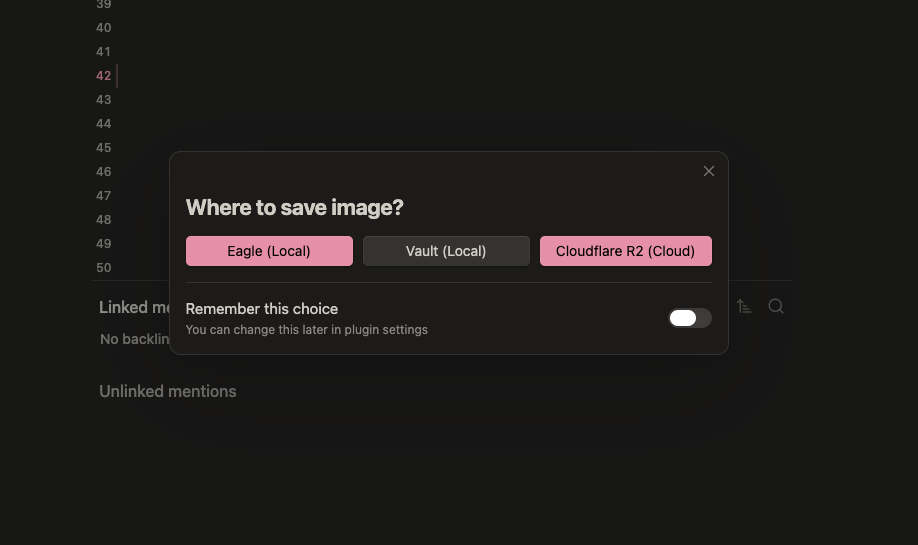
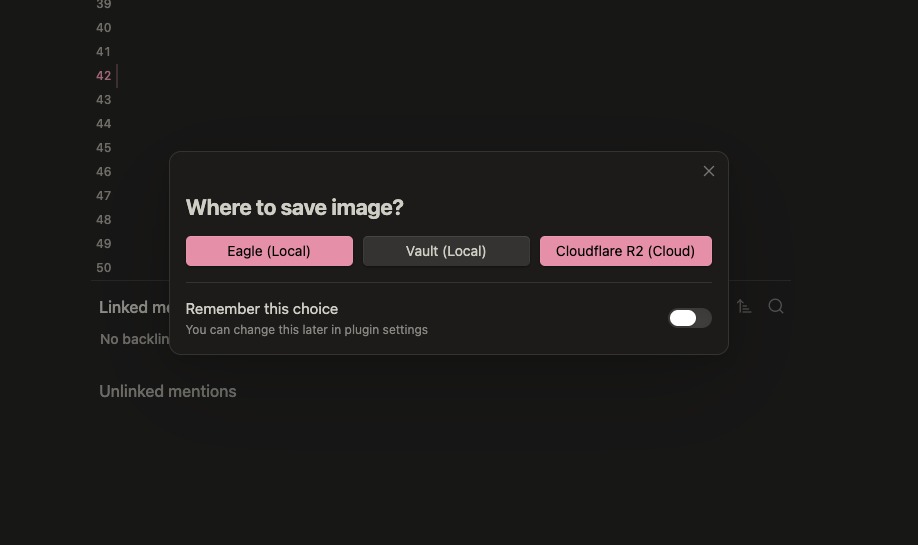
저장 위치 선택 화면. 클라우드 항목은 설정한 제공자에 따라 달라집니다. 기존 공개 캡처의 항목을 현재 소스와 대조했습니다.

시작 전 준비

데스크톱 Obsidian 1.6.6+ / 실행 중인 Eagle

먼저 알아둘 것

로컬 경로 링크는 다른 컴퓨터에서 바로 열리지 않을 수 있습니다. 공유 목적이라면 링크 방식과 원본 접근성을 먼저 확인하세요.

문서 기준 2026-09-14소스 버전 1.8.4Markdown ↙

CMDS Eagle 사용설명서

시각 자료 라이브러리를 노트와 연결하되, 원본과 미리보기와 공개 사본을 구분해 사용합니다.

배포 상태와 준비물

2026-09-14에 확인한 1.8.4 소스 기준입니다. 공개 릴리스 1.8.4에는 설치 파일 3종이 있으며 Obsidian Community Plugins 목록에도 등록되어 있습니다. 등록은 수동 보안 검토 완료를 뜻하지 않습니다. 목록에는 Obsidian 직원의 수동 검토를 받지 않았다는 고지가 있습니다.

  • Eagle을 실행할 수 있는 컴퓨터와 Obsidian 데스크톱 1.6.6 이상. 모바일에서는 플러그인이 실행되지 않습니다.
  • Eagle 설치, 해당 제품 이용 조건에 맞는 라이선스, 열린 라이브러리. 플러그인은 MIT 라이선스이고 Eagle은 별도 제품입니다.
  • 기본 로컬 API 주소는 http://localhost:41595. 로컬 검색과 가져오기에는 클라우드 계정이 필요 없습니다.
  • 클라우드 기능은 ImgHippo, R2, S3, WebDAV 또는 사용자 서버의 계정과 저장/전송 비용을 별도로 고려합니다. 플러그인이 서버를 대신 개설하지는 않습니다.
  • 백업한 테스트 노트와 비공개 정보가 없는 이미지 1개. 첫 작업으로 볼트 전체 이전을 실행하지 않습니다.

설치

  1. Obsidian 설정 → 커뮤니티 플러그인 → 탐색을 엽니다.
  2. CMDS Eagle을 검색해 권한 안내를 확인한 뒤 설치하고 활성화합니다.
  3. Eagle을 실행한 상태에서 설정 → CMDS Eagle → Connection → Test Connection으로 연결을 확인합니다. 수동 설치는 1.8.4 릴리스main.js, manifest.json, styles.css<vault>/.obsidian/plugins/cmds-eagle/에 함께 넣고 Obsidian을 다시 로드한 뒤 활성화합니다. 다른 컴퓨터의 data.json으로 기존 설정을 덮어쓰지 않습니다.

첫 성공: 노트 하나에 이미지 하나

  1. Eagle에서 테스트 이미지가 있는 라이브러리를 엽니다.
  2. 플러그인 설정의 **Where to store images → Import into Eagle (recommended)**을 선택합니다. 새 붙여넣기/가져오기의 저장 위치이며, 검색한 기존 자료의 위치를 바꾸는 설정은 아닙니다.
  3. What goes into the note → Photo + info — portable thumbnail (photo-info)를 선택합니다. 다른 기기에서도 미리보기를 읽기 좋은 추천값입니다. 실제 기본값은 cmds-eagle입니다.
  4. 연습용 Markdown 노트를 열고 이미지를 넣을 위치에 커서를 둡니다.
  5. Ctrl/Cmd+P로 명령 팔레트를 열어 Search Eagle library and embed를 실행하고 알고 있는 이미지 이름을 검색해 선택합니다.
  6. 이미지 미리보기, 한 줄 메타데이터 카드, Open in Eagle 링크가 의도한 자료를 가리키는지 확인합니다. 설정한 썸네일 폴더에는 미리보기 사본이 생깁니다. 노트와 썸네일을 동기화하면 다른 기기에서도 미리보기를 읽을 수 있습니다. 다만 eagle:// 링크를 열려면 해당 기기에 Eagle과 관련 라이브러리가 필요합니다.

저장 위치와 링크 모드는 별개입니다

Where to store images는 Eagle/볼트/클라우드/매번 묻기 중 저장 위치를 정합니다. What goes into the note는 Eagle 자료를 노트에 어떻게 참조할지 정합니다. 기본값 변경만으로 기존 노트 전체가 이전되지는 않습니다.

모드 노트에 들어가는 내용 볼트 사본 적합한 용도와 한계
photo-info Eagle 링크가 걸린 썸네일과 한 줄 카드 썸네일 메타데이터를 포함한 휴대 가능한 미리보기
photo-only Eagle 링크가 걸린 썸네일 썸네일 간결한 미리보기
link-only Eagle 딥링크 없음 이미지 미리보기 없는 이동 링크; 수신자에게 Eagle 필요
cmds-eagle 기본값 원본 file:// 임베드와 카드 없음 라이브러리가 마운트된 등록 데스크톱
cmds-eagle-photo-only 원본 file:// 임베드 없음 데스크톱에서 원본 화질로 보기
cmds-eagle-photo-link Eagle 링크가 걸린 원본 미리보기 없음 미리보기를 눌러 해당 Eagle 항목 열기

썸네일은 원본 백업이 아닙니다. Eagle이 썸네일을 만들지 않는 작은 이미지는 원본이 복사될 수 있습니다. 대기 시간 안에 이미지를 찾지 못하면 임시 파일 대신 Eagle 딥링크로 대체합니다. Eagle 원본을 삭제하면 원본 경로 모드는 깨집니다. 복사된 썸네일은 남을 수 있지만 Eagle 이동 링크는 더 이상 해당 항목을 열지 못합니다.

라이브러리, 폴더, 검색

검색 대상은 현재 Eagle에 열린 라이브러리입니다. 가져오기 대상 라이브러리를 바꾼다고 모든 라이브러리를 동시에 검색하지는 않습니다.

  • Detect libraries → Scan Eagle은 열린 라이브러리와 Eagle이 기억하는 이력을 읽습니다.
  • Target library: 현재 열린 라이브러리(기본), 지정 라이브러리, 매번 묻기. 지정 모드에서 Default library가 나타납니다.
  • Target folder: 라이브러리별 기본 폴더, 매번 묻기, 루트. 폴더 ID는 라이브러리마다 다르므로 각각 지정합니다.
  • 폴더 선택기는 전체 경로로 검색하고 가져오기 전에 새 폴더를 만들 수 있습니다. Eagle API는 가져오기 시 폴더를 배정하며, 이 설정으로 기존 항목을 사후 이동하는 것은 보장하지 않습니다.
  • Switch back after import는 적절할 때 이전 라이브러리로 돌아갑니다. 진행 중 사용자가 직접 바꾼 라이브러리를 강제로 되돌리지 않습니다.
  • 기억된 라이브러리 프로필을 지우면 저장한 기본 폴더도 제거됩니다. 디스크의 Eagle 라이브러리를 삭제하는 작업은 아니며 다음 검색에서 재발견될 수 있습니다.
  • Remove missing libraries on scan은 기본 꺼짐입니다. Eagle 이력과 디스크 양쪽에서 사라진 경우만 Missing으로 봅니다. 연결 실패 자체를 삭제 증거로 삼지 않습니다.
  • 검색 범위는 이름/태그/메모/폴더와 파일 형식으로 제한할 수 있습니다. Items to pre-load for search는 기본 5000이며 그 밖의 항목은 입력 중 Eagle 키워드 검색으로 보완합니다.

명령어 사전

명령 팔레트에는 CMDS Eagle 접두어가 붙습니다. 편집기 동작에는 활성 Markdown 편집기가 필요합니다.

실제 명령 이름 기능과 영향
Search Eagle library and embed 열린 라이브러리에서 찾아 삽입
Switch Eagle library Eagle에서 열린 라이브러리 변경
Set default Eagle folder for the open library 해당 라이브러리의 가져오기 폴더 저장
Upload clipboard Eagle image to cloud 클립보드 Eagle 참조를 읽어 이미지를 업로드하고 URL 삽입
Embed Eagle image and upload to cloud Eagle 항목 선택 후 업로드와 삽입
Convert all images in note to cloud URLs 현재 노트의 지원 이미지를 업로드하고 링크 수정
Convert cross-platform image paths in current note 등록한 루트 경로 매핑; 원문 수정 여부는 Conversion mode에 따름
Move this note's local images into Eagle 선택 노트의 로컬 이미지 이전; 다른 노트 수정과 원본 휴지통 이동 가능
Move all local images in the vault into Eagle 볼트 전체 이전; 파괴적 작업이며 첫 실습용 아님
Verify Eagle references in current note 파일/항목 누락 보고; 일시적 라이브러리 전환 가능; 노트 원문은 수정하지 않음

설정 사전

다음은 1.8.4 설정 코드에서 확인한 실제 표시 이름입니다.

구역 주요 설정
Connection Eagle API Base URL, Connection Timeout(밀리초), Test Connection
Eagle libraries Target library/folder, 조건부 Default library, Switch back after import, Library switch timeout, Scan Eagle, 누락 프로필 정리
Image paste/drop behavior Where to store images, What goes into the note, Thumbnail folder(기본 attachments/eagle), Hidden tag prefixes in card
썸네일 처리 Thumbnail wait timeout(기본 10000 ms), Thumbnail size warning(기본 2048 KB), Remove staged copy after import
Search & embed Include metadata card, Items to pre-load for search
Cloud storage provider Active Cloud Provider와 해당 제공업체의 인증/URL
Cross-platform sync Enable cross-platform path conversion, Conversion mode, Auto-convert paths on file open, Add current computer와 라이브러리 루트
Excalidraw integration Embed images in Excalidraw via cloud, Also add pasted screenshots to Eagle

임시 .eagle-temp/ 파일은 정리가 켜진 경우 Eagle에 복사한 원본의 전체 크기가 확인된 뒤 제거됩니다. 디버깅 목적으로 이 옵션을 끄면 사본이 더 남습니다.

클라우드 업로드와 Excalidraw

클라우드 명령을 사용하기 전에 제공업체를 설정합니다. 이름 선택만으로 인증 정보가 채워지지는 않습니다.

제공업체 준비할 것
ImgHippo 계정/API 키; 서비스 보관 정책과 제한 확인
Cloudflare R2 호환 Worker 업로드 엔드포인트, Worker API 키, 공개 버킷 URL; 버킷만으로는 부족
Amazon S3 엔드포인트, 리전, 버킷, 액세스 키 ID와 비밀키, 선택적 공개 URL
WebDAV 서버 URL, 사용자명/암호, 업로드 경로, 외부에서 읽을 수 있는 공개 URL
Custom server 플러그인 업로드 계약에 맞는 Upload URL과 Public URL

비민감 이미지로 시험하고 로그인하지 않은 브라우저에서도 결과 URL이 열리는지 확인합니다. 업로드 성공과 공개 읽기 가능은 별개입니다. 요금, 접근 정책, 보관 기간은 해당 서비스가 결정합니다. Excalidraw 연동에는 별도 Excalidraw 플러그인과 클라우드 설정이 필요합니다. Eagle 자료는 원본을 사용하고, 스크린샷은 업로드하면서 선택적으로 Eagle에도 가져옵니다. 그림은 외부 이미지 URL에 의존하게 됩니다. CMDS Eagle이 이 이미지를 암호화하지는 않습니다.

여러 기기에서 읽기

경로 변환은 Eagle 라이브러리 동기화가 아니라 루트 매핑입니다. 각 데스크톱에서 Add current computer를 실행하고 실제 마운트된 라이브러리 루트를 등록합니다. 로컬 볼륨, Windows 드라이브, UNC 공유 경로를 표현할 수 있습니다. 기본 Render only는 표시만 바꾸고 Markdown을 수정하지 않습니다. Modify note source는 파일 URL을 수정하며 마운트되지 않은 경로는 건너뜁니다. 여러 컴퓨터가 노트를 동기화한다면 render-only를 권장합니다. 휴대폰은 이 플러그인으로 데스크톱 file:// 라이브러리를 마운트할 수 없으므로 동기화된 썸네일이나 공개 이미지를 사용합니다.

이전 명령 실행 전 주의

볼트와 Eagle 라이브러리를 모두 백업하고 다른 편집을 멈춥니다. 노트 단위 이전도 이미지 선택만 한 노트에서 할 뿐, 같은 이미지를 참조하는 다른 Markdown 노트까지 수정합니다. 가져오기와 참조 수정이 성공한 뒤 볼트 원본을 Obsidian 삭제 설정에 따라 휴지통으로 보냅니다. 시스템 휴지통을 원하면 Obsidian에서 그 방식을 선택합니다. 생성 썸네일, 임시 파일, 참조되지 않은 자산은 제외됩니다. 실패한 항목의 원본은 남지만 앞서 성공한 변경은 자동 롤백되지 않습니다. 변경 파일과 실패 목록을 확인하고, 복원할 때 더 최근의 편집을 덮어쓰지 않습니다. 플러그인 설치나 설명서 열람만으로 이전은 실행되지 않습니다.

개인정보와 한계

  • 로컬 검색은 Eagle API에 요청합니다. 명시적 가져오기는 Eagle과 지정한 볼트 위치에 쓰며 클라우드 동작은 이미지 바이트와 요청 정보를 해당 서비스에 보냅니다.
  • data.json, 저장소 키, 라이브러리 경로, 진단 출력은 비공개로 취급합니다. 입력란이 가려져 있다고 저장 파일까지 암호화됐다는 뜻은 아닙니다.
  • 공개 이미지 URL은 전달되거나 캐시될 수 있습니다. 노트 링크 삭제만으로 클라우드 자산 삭제가 보장되지는 않습니다.
  • file://, eagle://는 공개 웹 이미지 URL이 아닙니다. Share 페이지가 수신자의 컴퓨터에 내 라이브러리를 마운트해 주지 않습니다.
  • 데스크톱 지원은 모든 OS의 새 컴퓨터 시험 완료를 의미하지 않습니다. 이 설명서 작업에서는 소스와 릴리스 메타데이터를 확인했으며 가져오기, 이전, 클라우드 업로드를 실행하지 않았습니다.

문제 해결

증상 확인 순서
연결 실패 Eagle 실행과 라이브러리 열기 → API 주소/시간 확인 → Test Connection
알고 있는 자료가 안 나옴 열린 라이브러리 확인 → 검색 범위/형식 필터 해제 → 정확한 이름 검색
Eagle 링크만 삽입됨 이미지 존재와 썸네일 대기 시간 확인; 임시 경로를 추측해 붙이지 않기
삭제한 이미지가 계속 보임 Obsidian 창 다시 로드 후 Verify Eagle references 실행; 메모리 캐시 주의
다른 컴퓨터에서 안 보임 라이브러리 마운트와 컴퓨터 루트 등록 또는 photo-info 사용
업로드 성공 뒤 이미지가 안 열림 업로드 인증과 별도로 공개 URL/읽기 권한 확인
지운 라이브러리가 다시 나타남 Eagle이 여전히 기억하는 항목인지 확인; 프로필 삭제는 디스크 삭제가 아님
이전이 일부만 완료됨 추가 일괄 실행 중단 → 알림/콘솔/백업 확인; 먼저 성공한 변경은 남음

업데이트, 지원, 제작자

업데이트 전에 설정을 백업하고 커뮤니티 플러그인 업데이트 또는 같은 릴리스의 파일 3종을 사용합니다. 노트 하나로 재확인하고 버전이 다른 파일을 섞지 않습니다. 제품과 웹 설명서 | 릴리스 | 문제 신고. 신고에는 플러그인/Obsidian/Eagle 버전, OS, 링크 모드, 제공업체 종류, 비민감 재현 절차를 포함합니다. 인증 정보나 개인 라이브러리, 전체 설정 파일을 첨부하지 않습니다. Yohan Koo (CMDSPACE), https://cmdspace.work. MIT, LICENSE 참조.

소스와 검증 기준

manifest.json, src/main.ts, src/settings.ts, src/types.ts, src/canonical.ts, src/api.ts, src/cloud-providers.ts를 대조했습니다. 소스 저장소. 아래 기존 스크린샷은 저장 위치 선택을 보여주며 1.8.4 전체 UI를 보증하지 않습니다. 화면의 비공개 정보 노출 여부를 확인했습니다. 기존 Eagle 저장 위치 선택 화면
부록: 기존 릴리스 이력

이전 README의 1.8.0–1.8.4 설명을 보존합니다. 역사적 표현은 당시 기록이며 현재 사용 절차와 한계는 위 설명서를 우선합니다.

1.8.4의 변경 사항

이름을 바꾸거나 지운 라이브러리가 목록에 영원히 남았습니다. 감지는 프로필을 추가하기만 했기 때문에, Eagle에서 이름을 바꾼 라이브러리는 존재하지 않는 경로를 가리키는 예전 항목으로 설정에 남았고 지울 방법도 없었습니다. 이제 모든 라이브러리 줄에 제거 버튼이 있고, Eagle이 더 이상 알지 못하면서 디스크에서도 사라진 라이브러리는 Missing으로 표시되며 목록 위에 Remove all missing 버튼이 나타납니다.

프로필에는 저장해둔 기본 폴더가 들어 있으므로 삭제는 기본적으로 사용자가 직접 하도록 두었습니다. 두 신호가 모두 일치할 때만 missing으로 판정합니다. Eagle이 목록에서 뺐고 동시에 디스크에서도 사라진 경우입니다. 마운트만 해제된 외장·네트워크 볼륨은 Eagle이 계속 기억하므로 목록에 남고 설정도 유지됩니다. Eagle이 실행 중이 아니면 아무것도 판정하지 않습니다. Scan Eagle이 알아서 정리하기를 원하면 Remove missing libraries on scan을 켜면 됩니다.

1.8.2의 변경 사항

검색이 라이브러리의 일부만 보고 있었습니다. Eagle은 limit을 주지 않으면 200개만 반환하는데, 검색 창이 limit을 넘기지 않았습니다. 항목이 2,400개인 라이브러리에서는 8%만 대상으로 퍼지 매칭한 셈이고, 나머지는 존재하지 않는 것처럼 동작했습니다. 이제 Items to pre-load for search(기본값 5000)만큼 미리 불러오고, 그 상한을 넘으면 입력에 맞춰 Eagle의 keyword 검색 결과를 합칩니다. 라이브러리 크기와 무관하게 모든 항목에 도달할 수 있습니다.

검색 필터가 아예 그려지지 않았습니다. 검색 범위 필터(Name / Tags / Notes / Folders), 파일 유형 필터, 라이브러리 항목 수 헤더가 모두 빠져 있었습니다. 이를 삽입하는 코드가 잘못된 요소를 찾고 있었기 때문입니다. 이제 정상적으로 표시됩니다.

볼트 루트에서 첨부 파일 경로가 깨지지 않습니다. Obsidian의 Default location for new attachmentsVault folder로 둔 상태에서 이미지를 로컬에 저장하면 //파일명.png 경로가 만들어져 Obsidian이 해석하지 못했습니다. @nancyel 님이 #1 에서 보고하고 수정해 주었고, 인접한 경우까지 확장해 반영했습니다.

1.8.0의 새로운 기능

여러 Eagle 라이브러리

Eagle은 한 번에 하나의 라이브러리만 엽니다. 다른 라이브러리로 가져오려면 해당 라이브러리로 전환한 뒤 돌아와야 하며, 각 전환에는 약 1초가 걸립니다. Settings → Eagle libraries에서 설정합니다.

Target library 동작
Currently open library (기본값) 전환하지 않습니다. 1.7.x와 동일하게 동작합니다.
Always a specific library 필요할 때 지정한 라이브러리로 전환하고, Switch back after import가 켜져 있으면 돌아옵니다.
Ask every time 가져올 때마다 선택하므로 한 노트에 여러 라이브러리의 에셋을 담을 수 있습니다.

가져오는 도중 Eagle에서 직접 다른 라이브러리로 전환하면 사용자의 선택을 우선합니다. 플러그인이 복귀 전에 현재 라이브러리를 확인하므로 사용자가 선택한 상태를 유지합니다.

라이브러리별 폴더

라이브러리 루트 대신 폴더로 가져올 수 있습니다. 폴더 ID는 해당 라이브러리에 속하므로 라이브러리마다 기본 폴더를 따로 저장합니다. Target folderAsk every time으로 설정하면 전체 폴더 경로를 검색하는 선택 창이 열립니다. 예를 들어 proj/jazzProjects/Jazz Blend를 찾을 수 있으며, Inbox/2026을 입력하면 Inbox 아래에 2026 폴더를 바로 만들 수 있습니다.

Eagle은 가져올 때만 폴더를 지정합니다. API로 기존 항목을 다른 폴더로 이동할 수 없으므로 대상 폴더를 먼저 선택하며, 다시 분류하려면 재가져오기가 필요합니다.

저장 방식과 링크 모드

이전에는 Eagle로 붙여넣어도 볼트에 사본이 남았고, 삽입한 참조가 재동기화나 다른 컴퓨터로의 이동 후에는 유지되지 않았습니다. 이번 버전에서는 다음 세 가지가 바뀌었습니다.

항목 이전 현재
.eagle-temp/의 임시 사본 붙여넣을 때마다 기록하고 삭제하지 않아 Eagle과 볼트 양쪽에 원본이 남았습니다. Eagle에서 가져오기를 확인하면 삭제합니다.
삽입 경로 대안 없이 Eagle 라이브러리의 절대 file:// 경로를 사용했습니다. 기본값은 여전히 cmds-eagle이지만, photo-info는 볼트 상대 경로 썸네일과 eagle:// 딥 링크를 사용하므로 재동기화 후에도 유지되고 다른 기기에서도 표시됩니다.
썸네일 대기 고정된 delay(1000)을 사용했으며, 큰 파일은 임시 파일 링크로 대체되어 나중에 연결이 끊겼습니다. 대기 간격을 지수적으로 늘리며 확인하고, 실패하면 딥 링크를 사용합니다. 컴퓨터에 종속된 경로로 대체하지 않습니다.

기존 설치의 동작은 유지됩니다. linkMode 기본값은 cmds-eagle이므로 다른 모드를 선택하기 전까지는 바뀌지 않습니다.

Eagle에서 삭제하면 노트에서도 이미지가 사라집니다. Eagle을 원본 저장소로 사용하는 cmds-eagle 계열 모드의 의도된 동작입니다. 다만 Obsidian이 창을 다시 불러올 때까지 메모리에서 이미지를 제공하므로 삭제 직후에도 잠시 표시될 수 있습니다. 실제 상태는 Verify Eagle references in current note로 확인합니다. Eagle에서 삭제한 뒤에도 노트에 이미지를 남기려면 photo-info를 선택합니다.

링크 모드

파일 저장 위치(Eagle / 볼트 / 클라우드 / 매번 선택)와 노트에 삽입할 형식은 서로 독립적인 설정입니다. 두 번째 설정이 linkMode입니다.

모드 노트에 삽입되는 내용 볼트 사본 다른 기기
photo-info 썸네일 + 한 줄 카드 썸네일 1개 가능
photo-only 썸네일 썸네일 1개 가능
link-only eagle:// 링크 없음 가능
cmds-eagle (기본값) 절대 file:// 임베드 + 카드 없음 등록한 데스크톱만 지원
cmds-eagle-photo-only 절대 file:// 임베드 없음 등록한 데스크톱만 지원
cmds-eagle-photo-link eagle:// 항목 링크가 연결된 원본 이미지 없음 등록한 데스크톱만 지원
# photo-info
[![hero shot](attachments/eagle/KXYZ01.png)](eagle://item/KXYZ01)
> `png` · 4.2 MB · 1920×1080 · #ui #ref · [Open in Eagle](eagle://item/KXYZ01)

# photo-only
[![hero shot](attachments/eagle/KXYZ01.png)](eagle://item/KXYZ01)

# link-only
[hero shot](eagle://item/KXYZ01)

cmds-eagle* 세 모드는 볼트 썸네일 대신 원본 이미지를 사용하며, 출력 구성은 표와 같습니다. 예시에는 컴퓨터별 파일 위치를 넣지 않았습니다.

썸네일은 Eagle 항목 ID를 기준으로 저장하므로 이름을 바꾸거나 다시 삽입해도 중복 생성되지 않습니다. 이미지 경로는 노트 기준 상대 경로이므로 볼트 전체를 동기화할 수 있으며, 카드는 정확히 한 줄입니다. cmds-eagle* 모드는 원본 자체를 임베드하므로 라이브러리가 마운트되어 있어야 합니다. 여러 데스크톱에서 같은 라이브러리를 사용하는 방법은 크로스 플랫폼 동기화를 참조합니다. 이식 가능한 사진 모드는 썸네일을 얻지 못하면 일반 eagle:// 링크로 대체합니다. 원본 모드도 원본을 찾지 못하면 같은 방식으로 대체하며, 임시 파일 참조는 사용하지 않습니다. cmds-eagle-photo-link에서는 표시된 원본을 클릭하면 Eagle의 해당 항목이 열립니다.

photo-* 출력 형식은 계약 테스트로 검증합니다. src/canonical.tstests/canonical.test.ts를 참조하며, 표시 형식을 변경할 때 두 파일도 일치시켜야 합니다.

기존 볼트의 이미지 이전

Move all local images in the vault into Eagle은 참조된 이미지를 가져오고, 모든 참조를 표준 형식으로 바꾼 뒤 볼트 사본을 휴지통으로 보냅니다. Move this note's local images into Eagle은 한 노트에서 대상 이미지를 선택하므로 먼저 시험하기에 적합합니다. 다른 노트에 있는 동일 이미지의 참조도 함께 바뀝니다. 두 명령 모두 확인을 요청하고 처리 결과를 알립니다. 볼트 전체 이전은 원본을 제거하는 작업이며 큰 볼트에서는 오래 걸릴 수 있으므로 먼저 백업합니다. 시스템 휴지통으로 보내려면 Obsidian에서 해당 옵션을 선택합니다. 플러그인은 Obsidian의 삭제 설정을 따릅니다.

맨 위로 ↑
← PluginsPublic release 1.8.4

CMDS Eagle / Connect your assets

Collected images.
Working knowledge.

Find Eagle assets from Obsidian and bring them into your notes. Choose storage destinations and link formats that fit your workspace.

Choose where to save an image. The cloud option follows the configured provider. This existing public capture was checked against the current source labels.

Before you start

Desktop Obsidian 1.6.6+ / Eagle running

Know the boundaries

Local-path links may not work on another computer. Check your link format and access to the original before sharing.

Documentation checked 2026-09-14Source version 1.8.4Markdown ↙

CMDS Eagle user guide

Connect a visual asset library to your notes without confusing the original, the preview, and the published copy.

Status and prerequisites

This guide covers source version 1.8.4, checked on 2026-09-14. Release 1.8.4 contains the three installable plugin files and CMDS Eagle is in the Obsidian Community Plugins registry. Registry listing is not a manual security review; its listing explicitly says it has not been manually reviewed by Obsidian staff.

  • Obsidian desktop 1.6.6+ on a machine that can run Eagle; no mobile plugin support.
  • Eagle installed, licensed according to Eagle's own terms, running with a library open. The plugin is MIT-licensed; Eagle is separate software.
  • Local API normally at http://localhost:41595. No cloud account is needed for local search/import.
  • Optional cloud account and storage/traffic budget for ImgHippo, R2, S3, WebDAV, or a custom upload service. The plugin does not provision a storage service for you.
  • A backed-up test note and one non-sensitive image. Do not begin with a whole-vault migration.

Install

  1. Open Obsidian Settings → Community plugins → Browse.
  2. Search CMDS Eagle, install, and enable it. Review the community-plugin permissions notice first.
  3. Open Settings → CMDS Eagle → Connection → Test Connection with Eagle running. For manual installation, download main.js, manifest.json, and styles.css from release 1.8.4. Put all three in <vault>/.obsidian/plugins/cmds-eagle/, reload Obsidian, and enable the plugin. Do not replace an existing data.json with somebody else's configuration.

First success: one image in one note

  1. In Eagle, open a library containing a harmless sample image.
  2. In plugin settings choose Where to store images → Import into Eagle (recommended). This is about new pastes/imports, not where an existing searched item lives.
  3. Choose What goes into the note → Photo + info — portable thumbnail (photo-info) for a portable preview. This is a recommendation, not the shipped default: the default is cmds-eagle.
  4. Open a scratch Markdown note and place the cursor where the image should appear.
  5. Open the command palette with Ctrl/Cmd+P and run Search Eagle library and embed. Search by a known item name, then choose it.
  6. Check the rendered preview, the one-line metadata card, and the Open in Eagle link. A thumbnail should be in the vault's configured thumbnail folder. Success means the image is visible and the link opens the intended Eagle item. Syncing the note and thumbnail can make the preview visible elsewhere; opening eagle:// still requires a supported Eagle installation and the relevant library.

Storage (Where to store images) offers Eagle, vault, cloud, or ask. Link style (What goes into the note) controls the reference inserted for an Eagle item. Changing the default does not migrate every existing note.

Mode What the note uses Copy in vault Best use / limitation
photo-info Thumbnail linked to Eagle, plus a one-line card Thumbnail Portable reading with metadata
photo-only Thumbnail linked to Eagle Thumbnail Portable, compact reading
link-only Eagle deep link None Navigation, not an image preview; recipient needs Eagle
cmds-eagle (default) Original file:// embed and metadata card None Original quality on a mounted, registered desktop
cmds-eagle-photo-only Original file:// embed None Compact original-quality desktop preview
cmds-eagle-photo-link Original preview linked to Eagle None Click the original preview to open its Eagle item

A thumbnail is not a backup of the original. Small images without an Eagle thumbnail may use a copied original instead. If an image cannot be resolved within the configured wait, the output falls back to an Eagle deep link rather than a temporary file. Deleting an Eagle original breaks the original-file modes; a previously copied thumbnail may survive, but its Eagle link will no longer resolve.

Search uses the library Eagle currently has open. Import destination settings do not make search span every library at once.

  • Detect libraries → Scan Eagle reads the open library and library history.
  • Target library: currently open (default), always a specific library, or ask every time. The specific-library mode exposes Default library.
  • Target folder: each library's default, ask every time, or library root. Folder IDs belong to a library; configure them separately.
  • The folder picker searches full paths and can create a folder before import. Eagle's API assigns folders during import; re-filing an already imported item is not promised by this control.
  • Switch back after import restores the previous library when appropriate. A manual library change during import is respected rather than overwritten.
  • Removing a remembered library profile also removes its saved default folder, not the Eagle library on disk. A scan may rediscover it.
  • Remove missing libraries on scan is off by default. A library is marked missing only when absent from both Eagle's history and disk; an unavailable scan is not evidence of deletion.
  • Search has name/tag/notes/folder scope and file-type filters. Items to pre-load for search defaults to 5000; additional results can come from Eagle keyword search as you type.

Command reference

Command-palette entries are prefixed by CMDS Eagle. Editor actions need an active Markdown editor.

Exact command Use and side effects
Search Eagle library and embed Search the open library and insert the chosen item
Switch Eagle library Change the library open in Eagle
Set default Eagle folder for the open library Save the import folder for that library
Upload clipboard Eagle image to cloud Read an Eagle reference from the clipboard, upload the resolved image, insert a URL
Embed Eagle image and upload to cloud Choose an Eagle item, upload and insert it
Convert all images in note to cloud URLs Upload supported images in the active note and rewrite their links; inspect the resulting note
Convert cross-platform image paths in current note Remap registered roots; source writes depend on Conversion mode
Move this note's local images into Eagle Migrate referenced local images; can rewrite other notes and trash originals
Move all local images in the vault into Eagle Vault-wide migration; destructive, not a first-use action
Verify Eagle references in current note Report missing files/items; may temporarily switch libraries; does not rewrite the note

Settings reference

The visible labels below come from the 1.8.4 settings implementation.

Section Important controls
Connection Eagle API Base URL; Connection Timeout (milliseconds); Test Connection
Eagle libraries Target library/folder; Default library when relevant; Switch back after import; Library switch timeout; Scan Eagle; missing-profile removal
Image paste/drop behavior Where to store images; What goes into the note; Thumbnail folder (default attachments/eagle); Hidden tag prefixes in card
Thumbnail handling Thumbnail wait timeout (default 10000 ms); Thumbnail size warning (default 2048 KB); Remove staged copy after import
Search & embed Include metadata card; Items to pre-load for search
Cloud storage provider Active Cloud Provider and that provider's credentials/URLs
Cross-platform sync Enable cross-platform path conversion; Conversion mode; Auto-convert paths on file open; Add current computer and library root
Excalidraw integration Embed images in Excalidraw via cloud; Also add pasted screenshots to Eagle

The staged file under .eagle-temp/ is removed after the copied Eagle original is confirmed at full size when cleanup is enabled. Disabling that option for debugging leaves additional copies.

Cloud upload and Excalidraw

Set a provider before using any cloud command; selecting its name alone does not configure credentials.

Provider Required setup
ImgHippo Account/API key from the provider; review its retention and service limits
Cloudflare R2 Compatible Worker upload endpoint, Worker API key, public bucket URL; a bucket alone is insufficient
Amazon S3 Endpoint, region, bucket, access key ID and secret; optional public URL
WebDAV Server URL, username/password, upload path, externally readable public URL
Custom server Upload URL and public URL matching the plugin's custom upload contract

Test using a non-sensitive image, then open the resulting URL in a browser that is not logged in. Upload success does not prove public readability. Charges, access policies, and retention are controlled by the chosen service. Excalidraw integration requires that separate plugin and a configured cloud provider. Eagle assets resolve to originals; screenshots can be uploaded and optionally also imported into Eagle. The drawing then depends on externally reachable image URLs. These uploads are not encrypted by CMDS Eagle.

Cross-device reading

Path conversion is a root mapping, not Eagle-library synchronization. On each desktop use Add current computer and enter the actual mounted library root. Local volumes, mapped Windows drives, and UNC network shares can be represented. Render only is the default conversion mode: it changes displayed paths without editing the Markdown. Modify note source rewrites file URLs and skips unmounted targets. Prefer render-only when several computers sync the same notes. Phones cannot mount a desktop file:// library through this plugin; use synced thumbnails or accessible cloud images for reading there.

Migration: read before running

Back up both the vault and Eagle library and pause competing edits first. The per-note migration chooses images from one note, but rewrites references to those images across other Markdown notes too. Successful imports/references are processed before the vault originals are trashed according to Obsidian's deletion preference. Select system trash in Obsidian if that is the intended destination. Generated thumbnails, temporary staging files, and unreferenced assets are excluded. Failure preserves the affected original, but earlier successful operations are not automatically rolled back. Inspect the reported touched files and failures. Restore from your backup deliberately, without overwriting newer edits. Migration is not performed by installing the plugin or reading this guide.

Privacy and limitations

  • Local search talks to Eagle's local API; explicit imports write to Eagle and selected vault locations. Cloud actions send image bytes and associated request data to the configured service.
  • Treat data.json, storage keys, library paths, and diagnostic output as private. A masked field is not proof of encrypted-at-rest storage.
  • Public image URLs can be forwarded or cached. Removing a note link does not guarantee deletion of its cloud asset.
  • file:// and eagle:// links are not public web image URLs. A Share page cannot make a recipient's machine mount your library.
  • Desktop source support is not a clean-machine test on every OS. This documentation pass inspected source and public release metadata; it did not execute imports, migrations, or provider uploads.

Troubleshooting

Symptom Check next
Connection fails Start Eagle, open a library, verify the local API URL and timeout, then Test Connection
Known item missing Confirm the open library; clear scope/type filters; search the exact name; check pre-load limit and API keyword results
Only an Eagle link appears Thumbnail/original could not be resolved; check file availability and thumbnail wait, not a guessed temp path
Image still appears after deletion Reload the Obsidian window and run Verify Eagle references; cached rendering can be stale
Missing on another computer Mount the library, register that computer/root, or use photo-info for a synced preview
Cloud upload succeeds but image fails Verify public URL/access policy separately from upload credentials
Removed library reappears Eagle still remembers it; profile removal does not remove Eagle's history or disk data
Migration partly completes Stop further bulk runs; inspect notices/console and backups; successful prior edits remain

Updates, support, and credits

Back up configuration before upgrading; use Community Plugins updates or the matching three files from one release, then retest one note. Keep release versions together. Product and web manual | Releases | Issues. When reporting a problem, include plugin/Obsidian/Eagle versions, OS, link mode, provider type, and a sanitized reproduction. Never attach credentials, a private library, or full plugin settings. Yohan Koo (CMDSPACE), https://cmdspace.work. MIT; see LICENSE.

Source and verification reference

Behavior was checked against manifest.json, src/main.ts, src/settings.ts, src/types.ts, src/canonical.ts, src/api.ts, and src/cloud-providers.ts. Source repository. Existing screenshot below shows the storage-choice interaction, not every current 1.8.4 setting; reviewed for visible private content. Existing Eagle storage-choice screenshot

Appendix: preserved release history

The following records the earlier README release notes (1.8.0–1.8.4). Historical wording is retained; the current workflow and limitations above take precedence.

What's new in 1.8.4

A renamed or deleted library stayed in the list for good. Detection only ever added profiles, so a library you renamed in Eagle kept its old entry in settings — pointing at a path that no longer exists, with no way to remove it. Every library row now has a remove button, and a library Eagle has forgotten that is also gone from disk is marked Missing with a Remove all missing action above the list.

Removal stays deliberate by default, because a profile holds your saved default folder. A library is only called missing when both signals agree: Eagle no longer lists it and the bundle is gone from disk. An external or network volume that is merely unmounted is still remembered by Eagle, so it stays listed and keeps its settings. When Eagle is not running nothing is judged at all. Turn on Remove missing libraries on scan if you would rather have Scan Eagle clean up on its own.

What's new in 1.8.2

Search saw only a fraction of your library. Eagle returns 200 items when no limit is given, and the search modal never gave one — so on a 2,400-item library it fuzzy-matched against 8% of it and everything else behaved as though it did not exist. The modal now pre-loads Items to pre-load for search (default 5000) and, beyond that cap, merges in Eagle's own keyword search as you type, so no item is unreachable regardless of library size.

The search filters were never drawn. The scope filters (Name / Tags / Notes / Folders), the file-type filters and the library item-count header had all been silently missing, because the code that inserts them looked for the wrong element. They now render.

Attachments no longer break at the vault root. With Obsidian's Default location for new attachments left at Vault folder, saving an image locally produced a //name.png path that Obsidian could not resolve. Reported and fixed by @nancyel in #1, then extended to the neighbouring cases.

What's new in 1.8.0

Multiple Eagle libraries

Eagle opens one library at a time, so importing into another one means switching Eagle to it and switching back — about a second each way. Set this up under Settings → Eagle libraries:

Target library Behaviour
Currently open library (default) Never switches. Identical to 1.7.x.
Always a specific library Switches to it when needed, then restores if Switch back after import is enabled.
Ask every time Prompts, so one note can hold assets from several libraries.

If you switch libraries in Eagle yourself while an import is running, your choice wins — the plugin checks before restoring and leaves Eagle where you put it.

Per-library folders

Imports can land in a folder rather than the library root. Folder ids belong to their library, so each library remembers its own default folder. Target folder can also be set to Ask every time, which opens a picker that searches full paths (proj/jazz finds Projects/Jazz Blend) and can create a folder inline — type Inbox/2026 to create 2026 under Inbox.

Eagle assigns folders at import time only: its API cannot move an item between folders afterwards. So the target is chosen up front, and re-filing means re-importing.

Pasting into Eagle previously left a copy in the vault as well, and the reference that was inserted did not survive a resync or a move to a second machine. This version changes three things:

Before Now
Staged copy under .eagle-temp/ written on every paste, never deleted — the original ends up in both Eagle and the vault removed once Eagle confirms the import
Inserted path absolute file:// into the Eagle library, with no alternative still the default (cmds-eagle), but photo-info now offers a vault-relative thumbnail + eagle:// deep link that survives a resync and renders on other devices
Thumbnail wait hardcoded delay(1000); large files fall back to a link to the temp file, which is then orphaned exponential-backoff polling, then a deep link — never a machine-local path

Existing installs keep their current behaviour: linkMode defaults to cmds-eagle, so nothing changes until you pick another mode.

Deleting in Eagle removes the image from your notes. That is the intent of the cmds-eagle modes — Eagle is the source of truth. Be aware that the image may keep rendering for a while after deletion: Obsidian serves it from memory until the window reloads. Run Verify Eagle references in current note to see the real state. Choose photo-info instead if you want notes to survive deletions in Eagle.

Two independent settings: where the file is stored (Eagle / vault / cloud / ask) and what goes into the note. The second one is linkMode:

mode note contains vault copies other devices
photo-info thumbnail + one-line card 1 thumbnail Yes
photo-only thumbnail 1 thumbnail Yes
link-only eagle:// link none Yes
cmds-eagle (default) absolute file:// embed + card none registered desktops only
cmds-eagle-photo-only absolute file:// embed none registered desktops only
cmds-eagle-photo-link original image linked to its eagle:// item none registered desktops only
# photo-info
[![hero shot](attachments/eagle/KXYZ01.png)](eagle://item/KXYZ01)
> `png` · 4.2 MB · 1920×1080 · #ui #ref · [Open in Eagle](eagle://item/KXYZ01)

# photo-only
[![hero shot](attachments/eagle/KXYZ01.png)](eagle://item/KXYZ01)

# link-only
[hero shot](eagle://item/KXYZ01)

For the three cmds-eagle* modes, the table describes the equivalent output using the original image rather than a vault thumbnail; machine-specific file locations are omitted from these examples.

The thumbnail is keyed by Eagle item id (so renames and re-inserts are idempotent), the image path is relative to the note (so the whole vault syncs), and the card is exactly one line. The cmds-eagle* modes embed the original itself, so they need the library to be mounted — see Cross-platform sync for sharing one library across desktops. The portable photo modes degrade to a plain eagle:// link when their thumbnail is unavailable. The original modes do the same when the original cannot be resolved — never to a temp-file reference. In cmds-eagle-photo-link, clicking the rendered original opens that exact item in Eagle.

The photo-* output shape is covered by contract tests — see src/canonical.ts and tests/canonical.test.ts. Keep them in sync when changing the rendered form.

Moving an existing vault over

Move all local images in the vault into Eagle imports every referenced image, rewrites all references to the canonical form, and sends the vault copy to the trash. Move this note's local images into Eagle selects images from one note — try that first. References to those images in other notes are also rewritten. Both ask for confirmation and report what they touched. The vault-wide operation is destructive and can be slow on large vaults; back up first. To send originals to the system trash, select that option in Obsidian: the plugin follows Obsidian's deletion setting.

Back to top ↑